|

|
Take "Windows" as an example |
|
2.
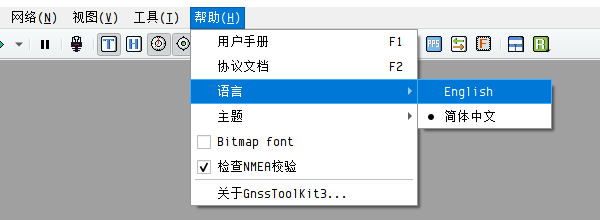
Download and run "GnssToolKit"> |
|
|
|
|

|
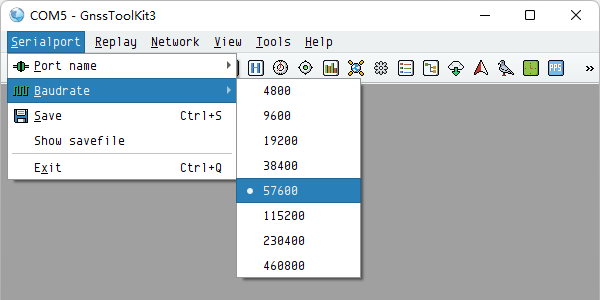
3. Select "SerialPort" - "Baudrate" - "57600". |
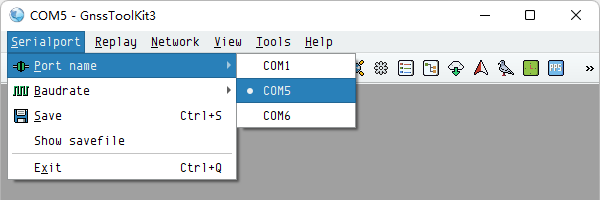
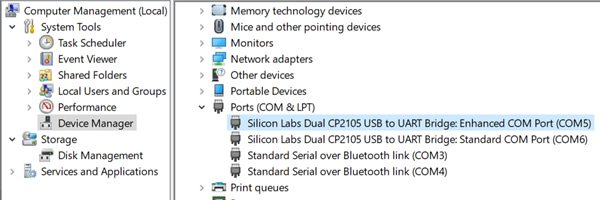
4. Click "Serialport" - "Port name" - select the port where "Enhanced COM Port" is located. |
|
|
|
|
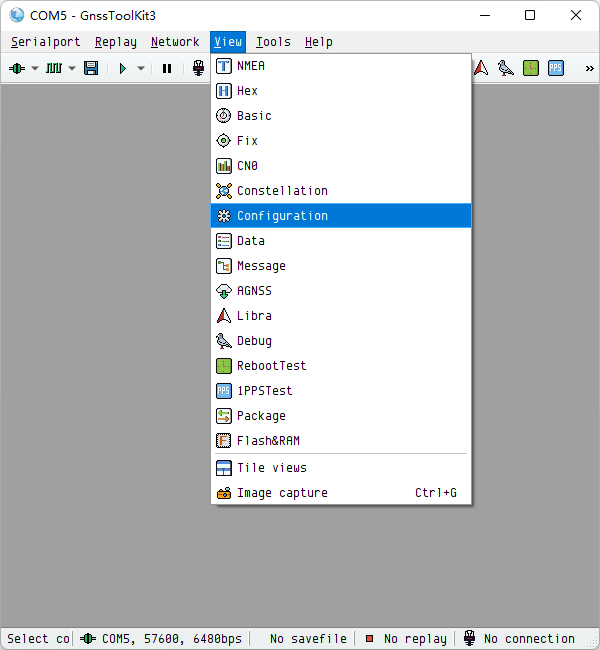
5. Click "View" – "Configuration". |
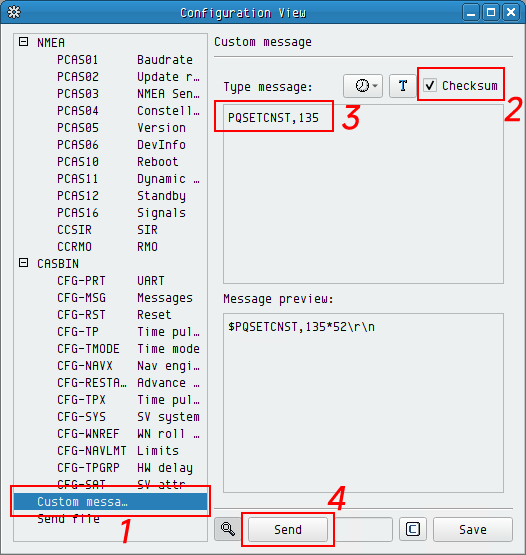
6. Click "Custom message", click "Checksum", type the message "PQSETCNST,135", and finally click "Send". For more parameters, please see below. |
|
|
|
|
7. Recommended values for the following parameters. |
|
|
(1)
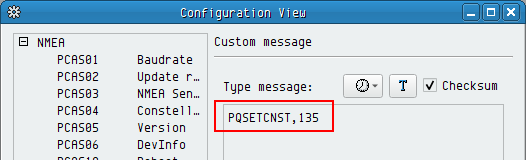
PQSETCNST,135 Note: BeiDou and QZSS are disabled to free up more satellite channels for GPS and GLONASS. This configuration is suitable for users in North America and Europe.
|
(2)
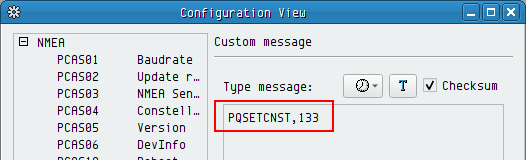
PQSETCNST,133
Note: If the
current number of satellites is already sufficient, SBAS satellites
may not be prioritized for acquisition.
|
|
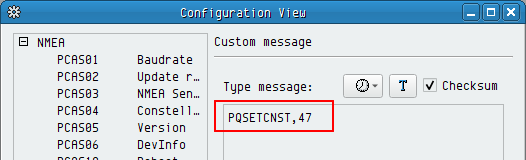
(3)
PQSETCNST,47
|
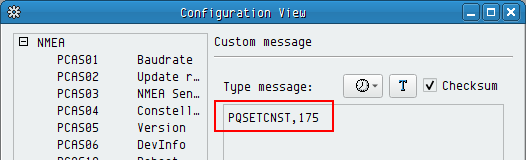
(4)
PQSETCNST,175
Note: If the
current number of satellites is already sufficient, SBAS satellites
may not be prioritized for acquisition.
|
|
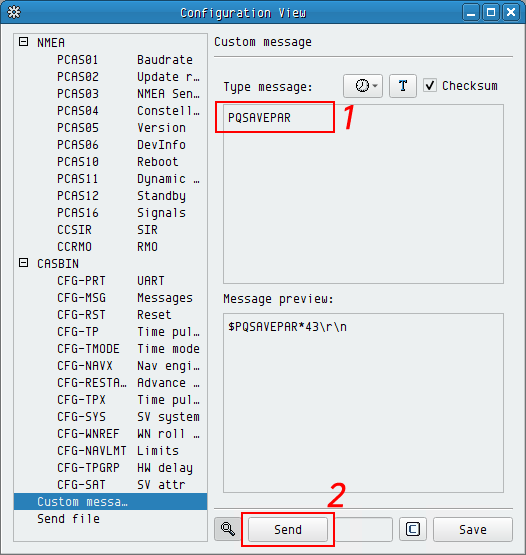
8. Type the message "PQSAVEPAR" and click “Send” to save the settings. |
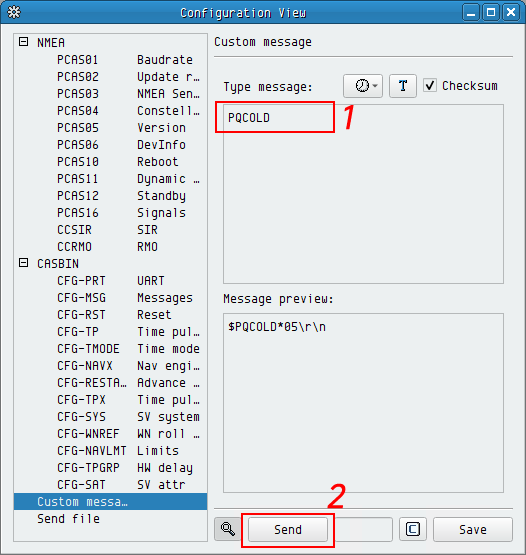
9. Type the message "PQCOLD" and click "Send" to clear the ephemeris. |
|
|
|
 |